The Harness
Grab any image, snap a region, or rake a whole gallery from anywhere on the web — and drop it straight onto your Brain Boards, without breaking your flow.
Free to start · signs in with your Wovea accountHow it works
Aim
Right-click any page → “Show harness landing pad,” pick the board to fill, and flip on Dropper.
Grab
Click an image, Shift-drag a region, or ⌘/Ctrl+A the whole gallery. Each grab stages in the pad and uploads — nothing interrupts your browsing.
Build
It lands in your Clips collection in Wovea, auto-tagged by AI and ready to arrange.
Grab anything
Three ways to grab, all from the Dropper — no menus, no copy-paste. Everything lands straight in your Clips collection.
Images
ClickWith Dropper on, click any image to grab it at full resolution. Duplicates are caught against your library automatically.
Regions
Shift-dragShift-drag any area of a page to snap it as a screenshot — perfect for charts, layouts, or anything that isn't a clean image.
Whole galleries
⌘ / Ctrl + APress ⌘/Ctrl+A to grab every image on the page at once — rake a whole gallery in a single keystroke.
Using the Harness in your browser
- 1
Add the Harness to Chrome
Install the extension. No toolbar pinning needed — everything lives on an in-page pad.
- 2
Open the landing pad
Right-click any page → “Show harness landing pad,” and sign in right there with your existing Wovea session — no extra password, no API keys. (A free account is all it takes.)
- 3
Enable clipping (one time)
The first time you grab, the pad shows an “Enable clipping” button — click it, then Allow when Chrome asks. The Harness requests this only on first use, never at install. (Full story below.)
- 4
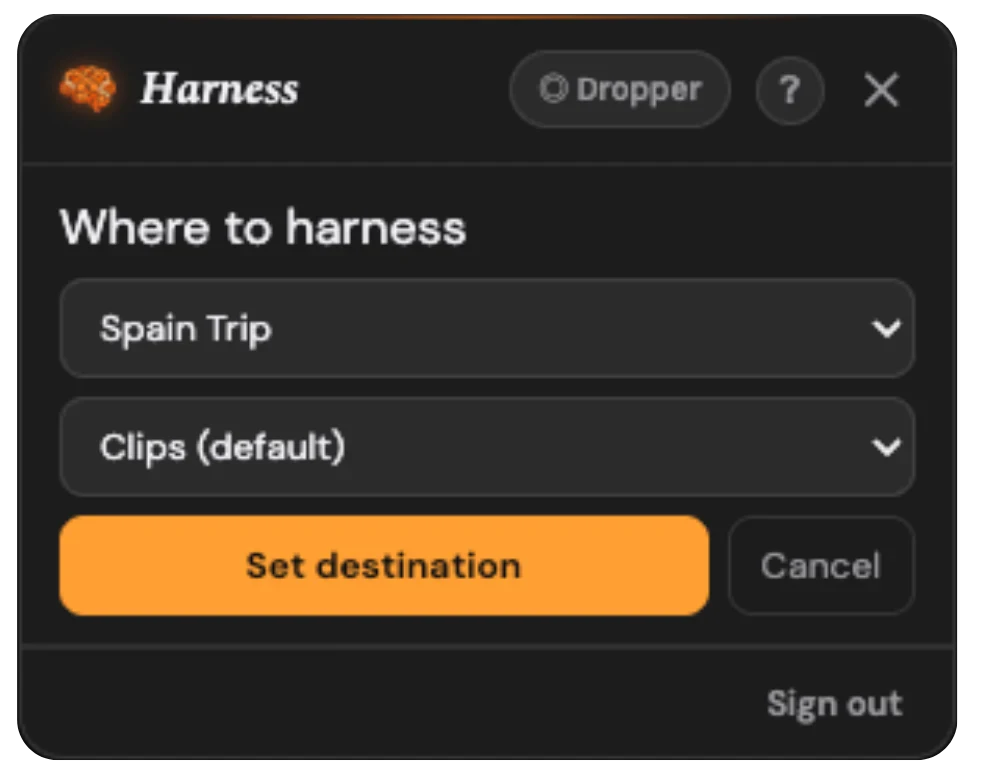
Pick a destination
On the pad, choose the board (and optionally a collection) every grab should land on. Change it anytime; leave it on the default and grabs collect in a tidy “Clips” collection.
- 5
Turn on Dropper and grab
Flip on Dropper and your cursor becomes a crosshair. Click an image, Shift-drag a region, or press ⌘/Ctrl+A to grab every image at once — all without leaving the page. (Dropper turns itself off after two minutes idle.)
- 6
Watch the pad
Each grab shows its status: Hold… (a moment to cancel) → Uploading… → Harnessed ✓. Hide the pad whenever you want it gone — right-click brings it back.
You decide what it can touch
The Harness only reaches into a page when you clip from it — and it asks for access the first time you clip, never when you install. Here's the whole story.
Read the page you clip
To grab an image or snap a region, the Harness reads the page you're actively clipping from. It never looks at pages you're not clipping.
Fetch the image itself
Pictures often live on a different server than the page they sit on. The Harness fetches the original file so it lands on your board at full quality — which is why it asks to reach other sites.
Turning it on
- 1
The first time you grab, the pad shows an “Enable clipping” button — click it.
- 2
Chrome asks you to confirm — click Allow.
- 3
That's it. Access is requested only when you first grab, never at install — and the grab you just made is picked up automatically.
Choose how much access
Clip from anywhere without re-approving. Best if you gather from lots of different sites.
The Harness only gets access on a site when you allow it there — or only on the sites you list. More control; you approve as you go.
Change it anytime at chrome://extensions → Wovea Harness → Site access.
Where your clips land
- 1
Find your Clips
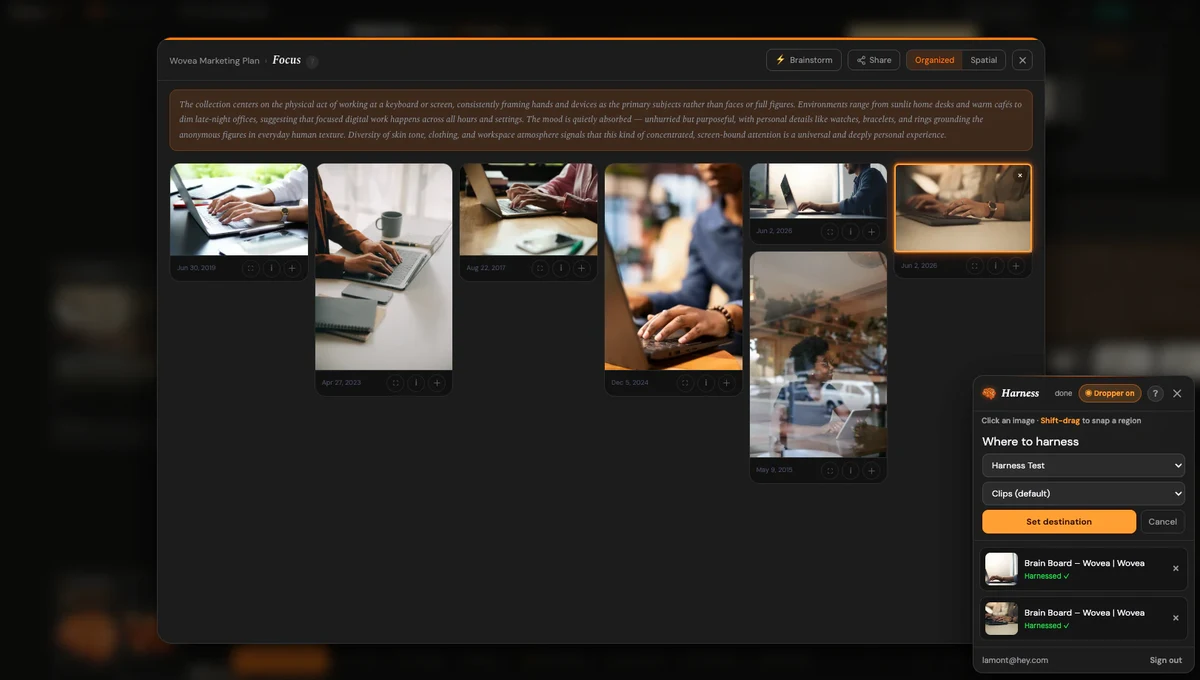
Open the board you harnessed to. Everything you clipped is waiting in its Clips collection in the Organized grid.
- 2
Watch the tags arrive
As each clip finishes uploading, Wovea's AI auto-tags it — themes and labels appear live, so the pile is already organized when you get there.
- 3
Arrange and connect
Drag clips into other collections, draw connections between them, or pull them onto the Spatial canvas to start shaping the story.
Good to know
- Using the Harness needs a (free) Wovea account — signing in is the first step.
- No toolbar required — the in-page landing pad is the whole control panel.
- Built for Chrome today (Manifest V3); more browsers are on the way.
- Duplicate images are caught automatically, so raking a page won't clutter your board.
- It only touches a page when you clip from it — and you grant access the first time you clip, not at install. Manage it anytime in Chrome's Site access settings.
Start harnessing the web.
Add the Harness to Chrome, open the pad, and your next great idea is one grab away.